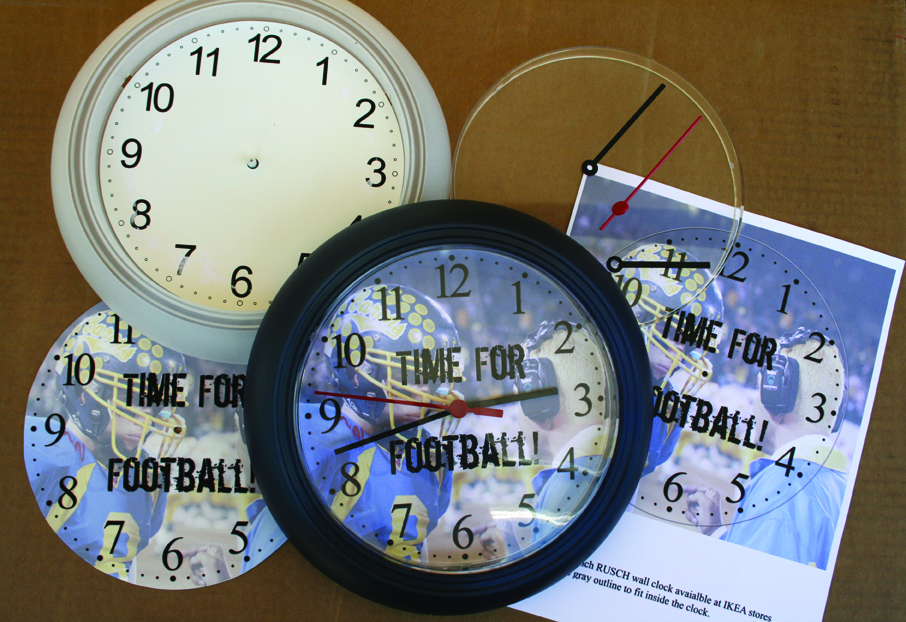
 This is an inexpensive and easy gift that can be made quickly using Photoshop Elements 5 or another photo editing software. A personalized clock is a great gift for anyone!
Materials:
- IKEA - RUSCH Wall Clock (Retails $2.99. Available in white or navy blue.)
- Westclock - Simplicity & Ventura Wall Clocks (Retails approximately $9.90. Available in many colors.)
- Template for clock downloaded at www.scrapbookdimensions.com.
- One or more photos
- Dirty Ego font (free font downloaded from Dafont.com)
- Mr Scrap Pop! Actions Drop Shadow (www.PolkaDotPotato.com)or other drop shadow action (default Photoshop Elements drop shadow is OK)
- Traditional embellishments such as stickers may be used but they must lay flat across the face of the clock or they will disrupt the movement of the clock hands.
- Adhesive
Instructions:
- using Photoshop Elements 5 in Maximize Mode (Window>Images>Maximize Mode), shortcuts are shown in parenthesis:
- Open a new blank file by choosing File>New>Blank File (Ctrl>N) If you are printing this at home on regular paper choose 8.5 x 11 inches. If you are going to print this at a photo lab choose 8 x 10 inches. Resolution=300 pixel/inch, Color Mode=RGB Color, Background Contents =White.
- Name the new file something you will remember like Football Clock.
- File>Open (Ctrl>O) the appropriately sized template file and the photos you are going to use.
- Click on the photo you are going to use in the Photo Bin so that it’s the active image.
- Choose the Move Tool (V) and click and drag the photo or photos down to the blank file page. Use the Move Tool to move them to the correct position once on the page. On my example I only used one photo for simplicity.
- Click and drag on a corner sizing handle to activate the Transform Tool (Ctrl>T) to resize for Photoshop Elements 5. Lower versions of Photoshop Elements require that you hold the Shift key to not distort your photo when resizing it.
- Click on the template in the Photo Bin so that it’s the active image.
- Click and drag the clock face template down to the blank file page in the Photo Bin also using the Move Tool (V). If you have trouble moving the template because of the transparent background, hold the Ctrl key as you click and drag to temporarily turn off the Auto Select Layer option.
- Your clock face should be above the photo layer. If not, drag it up in the Layers Palette.
- Adjust the opacity of the photo layer(s) so that the numbers on the clock are visible by selecting the photo layer and sliding the Opacity slider at the top of the Layers Palette. My example is set at 45%
- Choose the Text Tool (T) and type your text. Optional-Add a drop shadow to the template layer and text layer.
- File>Save (Ctrl>S) as a JPEG if you are printing this at a photo lab. If you are printing at home you can print directly from the PSD file.
- Close the photo and template files without saving changes by right clicking on them in the Photo Bin.
- File>Print (Ctrl>P) to print at home or upload the JPEG to your photo lab.
- Use scissors or a circle cutter to cut inside the circle outline just slightly. Cut a hole in the center.
- Take the clock apart by pushing in on the three plastic tabs on the back of the clock using a screw driver or, my tool of choice, a butter knife. This will push the clear plastic cover outward.
- Pull the clock hands off with a quick hard jerk.
- Place your new clock face over the original clock face and make sure that it fits, trim if it’s a little bit too big. Make sure that you line up the new clock face exactly over the old clock face so that the time will always be right. An eyelet setter works well to punch out the center hole.
- Use adhesive to secure the new clock face and reassemble the clock.
To use a different clock:
- Take apart the clock and scan the face.
- Use a minimum of 300 DPI setting and save as a JPEG.
- Open Photoshop Elements and choose File>Open (Ctrl>O) and open the clock face scan.
- Duplicate the layer Layer>Duplicate Layer (Ctrl>J).
- Turn off the eyeball on the Background layer.
- On the copy layer, select the white background of the scan by choosing the Magic Wand Tool (W).
- Uncheck Contiguous on the Options Bar and click your mouse on the white area. Tap the Delete key and your background will be transparent which is represented by a checkerboard pattern.
- File>Save (Ctrl>S) to save this template for future use.


Speak Your Mind